
In a recent discussion about using Adobe Acrobat for redaction, how to code redactions came up.
We do a lot of redaction for people and use a lot of automation for this. One challenge is that you commonly have to record exactly under what rule you redacted or the information was exempt. If you want this presented in the response, this can be a bit of a pain.
These files give you coded text to include in the redaction marks for three UK laws:
- Data Protection Act 2018 - Schedules 2/3/4 exemptions
- Freedom of Information Act 2000 - Sections 21-44 exemptions
- Environmental Information Regulations 2004
How to install
- Download the ZIP file from the link below
2. Verify the file if needed
[If you don't know what this means you can skip this bit - it just provides added security that the file has not been changed.] The SHA256 sum if you wish to confirm the download is:
fc25a214d0983e180aafcf001e5343e48196e94d9072a9e4fa82ec58f552d67af
3. Double-click the downloaded zip file. You should see FOUR files - three XML files and a Word Document "explainer". Drag these somewhere temporary. Remember where you put them for later steps!
Optional step Before you install, consider if you want to change the way we have done the codes. Each code is written as follows:
(LAW)(Law Reference)
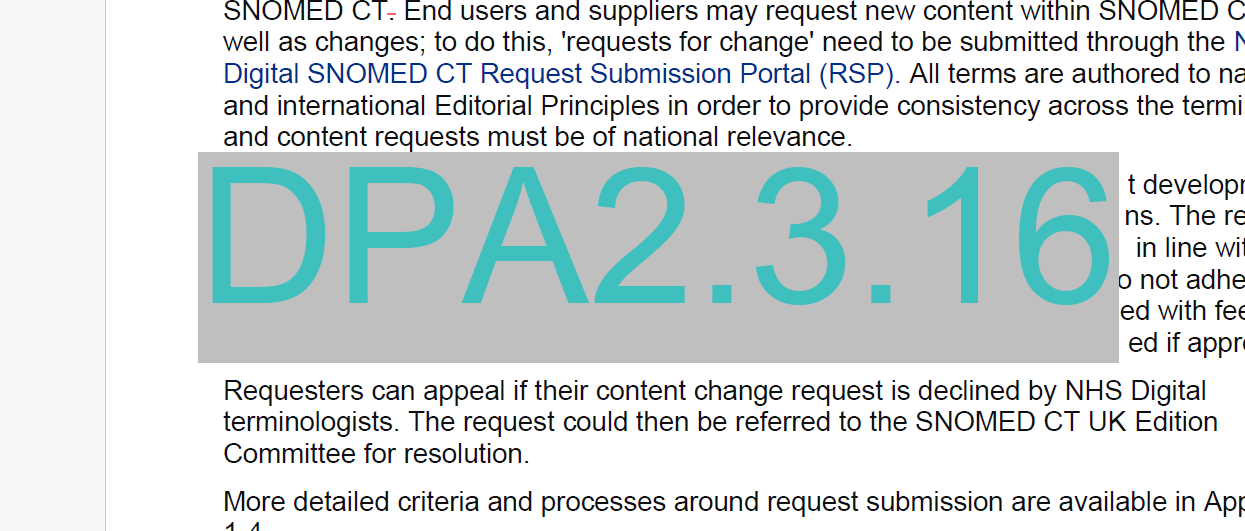
e.g. for Data Protection Act 2018 Schedule 2 part 3 section 16, it's DPA2.3.16.
If you're just doing redaction under one law, or don't have documents where the laws are mixed, you could consider removing the (LAW) bit. To do this, just open the file in a text editor and search/replace the law name before you do the import.
4. Open a PDF file with Acrobat. The exact file doesn't matter, we are not going to edit it.
5. Click on the All Tools menu item
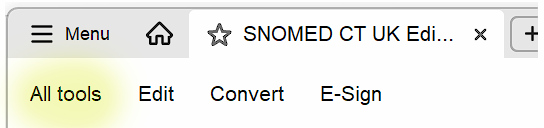
6. Then Redact a PDF

7. The redact menu appears. Click on Set Properties

8. The Redaction Tool Properties dialog appears.
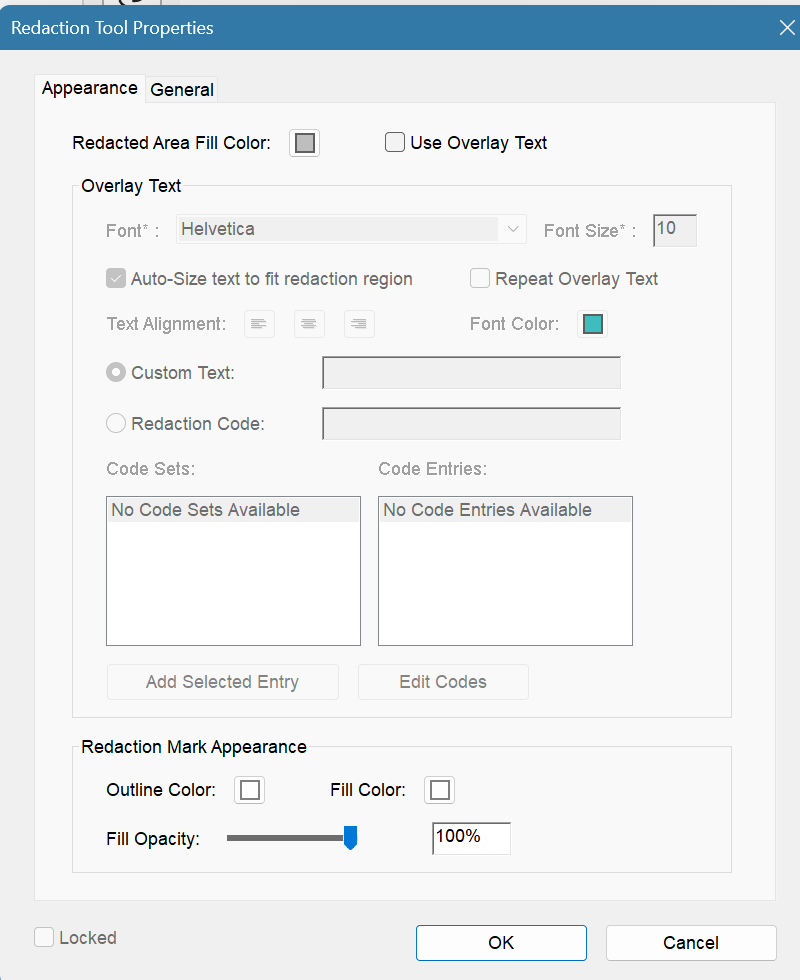
Check the box marked Use overlay text, then select the radio button Redaction code. The two buttons under the code set/entries should become available. Click Edit Codes.
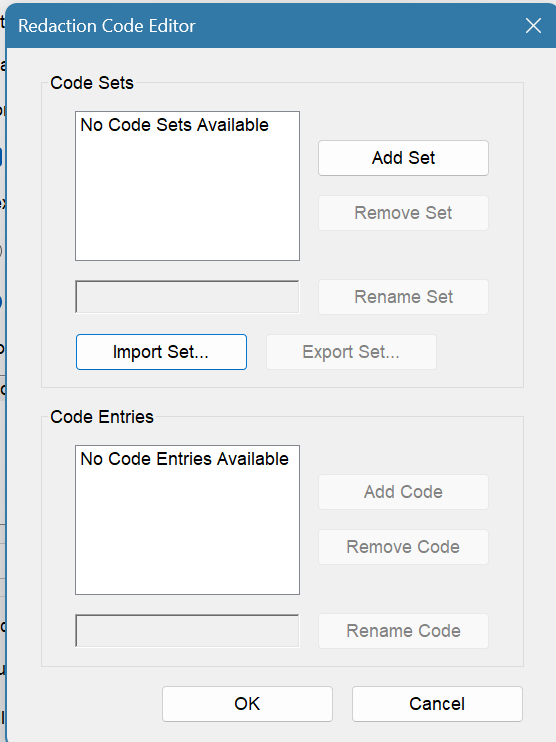
Click Import Set. A file selection dialog appears. Select the first of the XML files you extracted in step 3, click OK and the listed set should appear in the Code Sets box. Repeat for each set you want to install, then click OK.
Click OK again on the Redaction Tools Properties dialog. That's it, you have the codes installed!
How to use
To use the codes, simply open a document to redact and select Set propeties.
You need to make some choices - this can be changed later, but it's best to decide how you're going to work for consistency. Note that choices are saved, so you should only need to do the colour choices and fonts once.
I usually redact in light grey rather than black - the Children's Commissioner advised against using black in children's documents a long time ago, and a grey always looks a bit less "stern" than black. Make sure you set the same colours for Redaction Mark Appearance as for the Redacted Ares Fill Color - it doesn't matter in the final document, but it looks weird if the colour changes when you hover on it.
I also use a Font Color for the redaction mark, but black can be used, or anything that contrasts with the background. Once you've set it up the way you want it, select the Redaction Code button and pick the first code you're going to use - screen should look something like this:
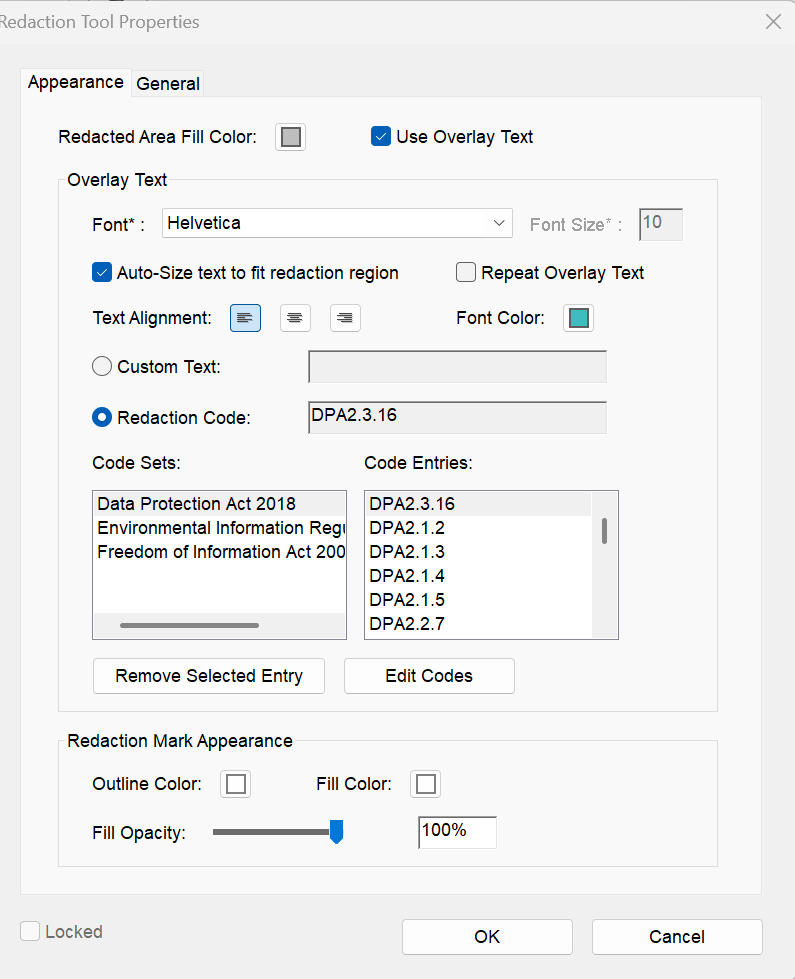
You can now redact. The redaction mark chosen will appear as a blank box with the outline / fill colour chosen above, and when you hover will show the redaction mark.
Changing redaction mark
Obviously, not everything is going to be under the Data Protection Act Schedule 2 Part 3 Section 16! To change the mark you are using, hit Set properties, then click on the code entries in the Code Entries: box you want to remove, click Remove selected entry. Then click the code you want to add and click Add selected entry. This doesn't change marks you've already made.
If you make a mistake in the mark for a redaction - or just want one item to have a different mark and don't want to go through the above, before you finalise, right-click anywhere in the redaction and you'll get a pop-up box. At the bottom of the pop-up list will be the names of the templates you imported. Select the relevant one, tick the redaction mark you want, right-click again and untick the one you don't want.
Finalising redaction
When you finalise the redaction (Apply button, with Sanitise checked on dialog box), the redaction marks will become solid image and all text (including in metadata) is automatically
I need to explain the codes!
Sending a redacted document with these codes in is, quite rightly, going to result in a request for a code explainer, so the last document in the list explains all the code in a bit more detail. You can use this to explain to requesters, edit as needed.
You must be logged in to post a comment.